designer.io (Formerly Gravit)

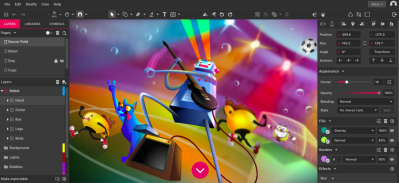
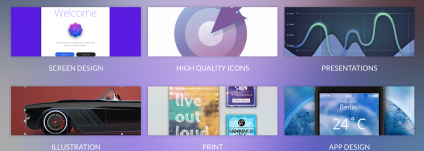
designer.io is the multifaceted vector designing and graphics program that has evolved from its earlier version known as Gravit. It is one of the more commonly used design tools in our EurekaLab because it communicates well with multiple “making tools”.

Screen Shot 2018-08-27 at 11.59.05 PM  Screen Shot 2018-08-27 at 11.59.33 PM

There are tons of tutorial videos online such as those found on their official youtube channel below:

WeVideo

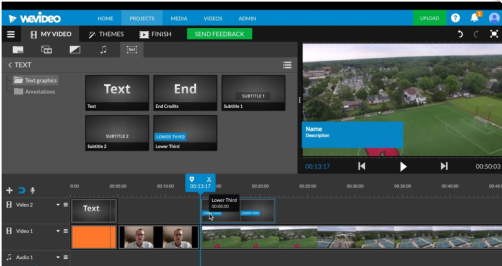
WeVideo is a great alternative to iMovie, particularly for students and teacher who use PCs. Even for MAC users, it provides one key feature that sets it apart. Because it is a platform that is online, students can collaborate together on the same project from home without having to sit in front of the same device that began the iMovie project. It also is very similar to iMovie in its layout so students who are used to working with Apple’s video editing platform will have no trouble making the transition. We have a school account that allows us a certain number of videos to be created and stored, though there is also a free version that has some limitations. There are other movie making resources listed on this site that are worth comparing, but WeVideo is a solid option.

Screen Shot 2018-08-27 at 11.56.21 PM


Google Drawings

I would include Google Drawings in the “swiss army knife of digital resources”. On its own, it is easy enough to create stand alone projects, though it is most powerful when it is incorporated into other aspects of a larger project. Because of its consistencies with other Google publishing platforms, it is extremely easy for students to use independently. It is also beneficial to have students be able to share their work as they would with any other Google doc, make a copy of a template teachers could send out, or whatever else you can think of with using a digital canvas.

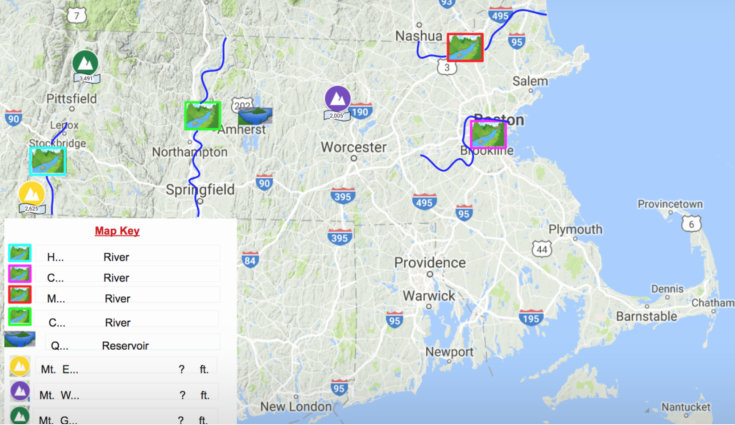
Below is one example of how teachers used Google Drawings to create a map that they had student partners duplicate and complete.

Screen Shot 2018-08-27 at 11.33.43 PM.png

Skype In The Classroom

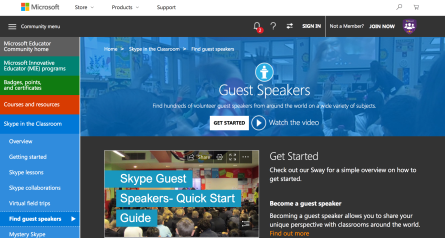
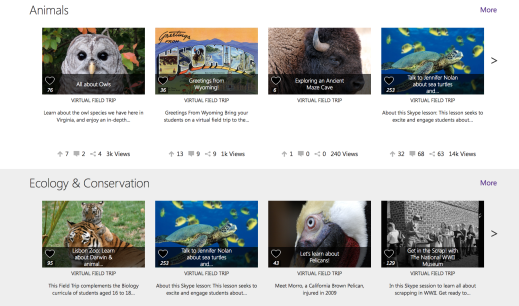
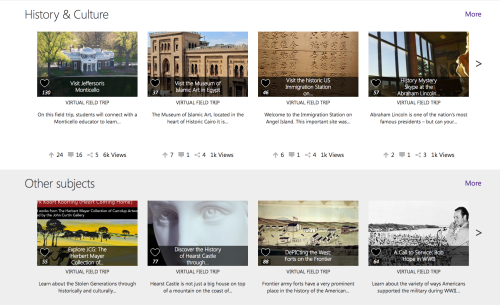
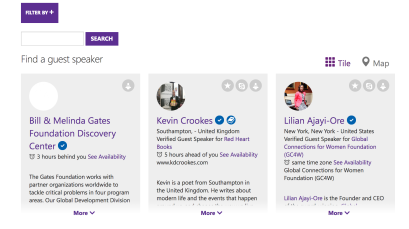
Microsoft offers this free online community that is filled with possible connections to experts and other classrooms from around the world. It continues to grow its collection of possible sessions and with our many spaces that have larger display options, large groups of students can “reach across the globe” to participate at once.

Screen Shot 2018-08-27 at 10.15.37 PM


Screen Shot 2018-08-27 at 10.23.21 PM


Screen Shot 2018-08-27 at 10.23.29 PM


Screen Shot 2018-08-27 at 10.23.51 PM

Nepris

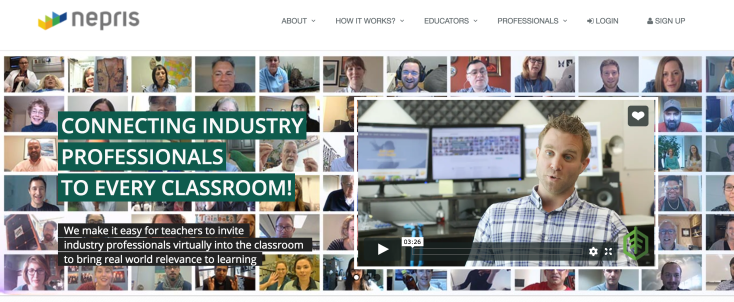
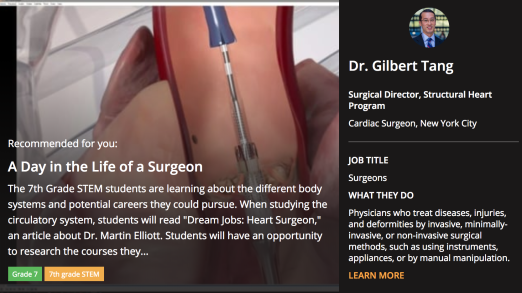
Nepris is a resource for connecting leading experts in a variety of fields with classrooms. They offer live personal distance learning opportunities as well as shared sessions where students from around the world can submit questions to be answered live. They also provide a curated collection of past presentations. We do have a basic school subscription that grants us access to many features and sessions, though we could upgrade our plan if there is enough interest.


Screen Shot 2018-08-27 at 9.54.42 PM

Screen Shot 2018-08-27 at 10.06.53 PM


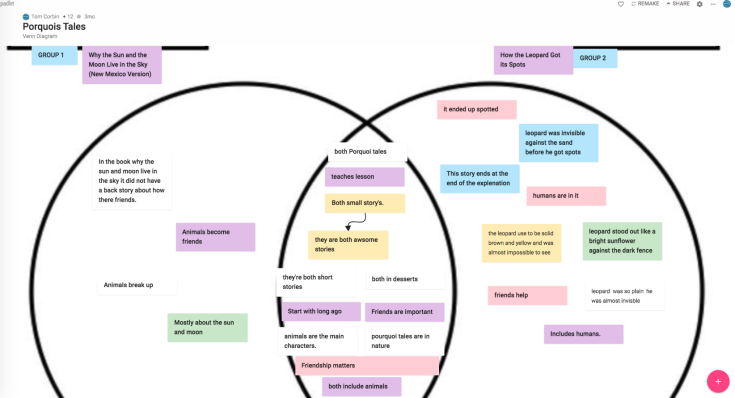
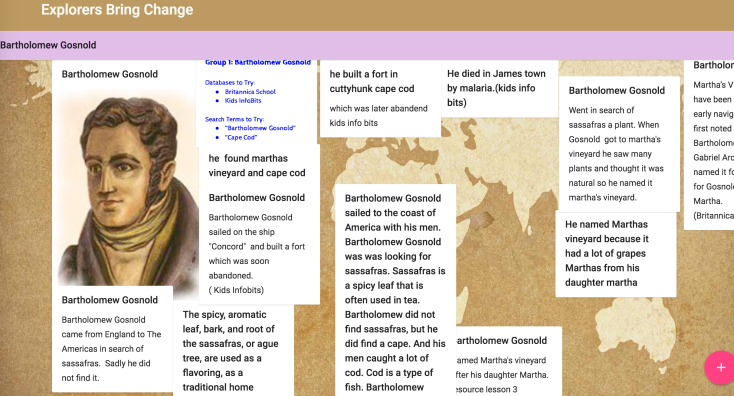
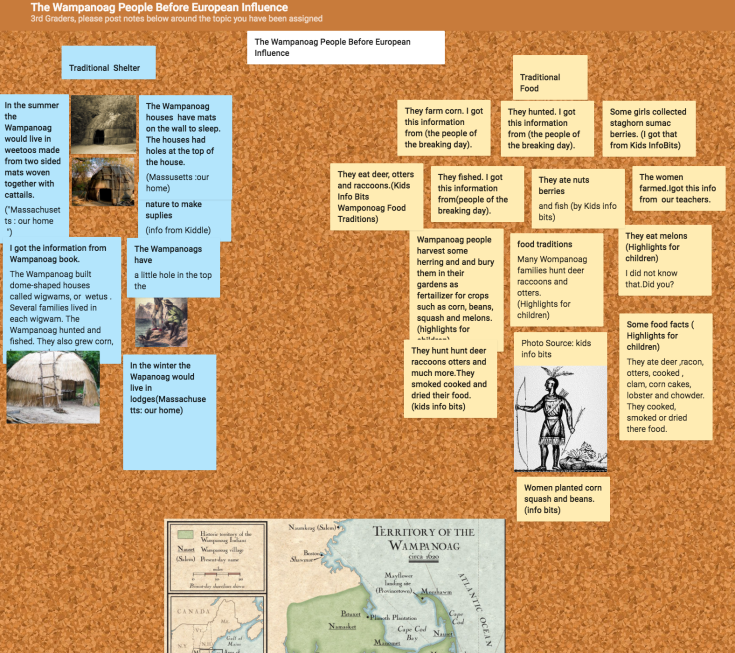
Padlet is still one of the more dynamic resources you will find today for teachers and students. We have a school subscription to the EDU version so your options for using it are not limited (though the free version is very strong). Padlet basically exists as a digital bulletin board that an entire class can access and collaborate together on at the same time. The most recent updated versions allow you to embed video, documents directly from Google Drive, audio, text, and and more. You can customize backgrounds, sort posts in a variety of ways, and can easily clone existing Padlets so many people can personalize their notes. As a note-taking tool, it is a fantastic option and you can customize fonts and features as you would in any other digital document. Students as young as third grade have had success using it, though obviously the older the grade level, the broader the possibilities. Check out some of our own student and teacher examples below!

CLICK HERE to see how 3rd grade student group used Padlet for taking notes:

Screen Shot 2018-08-27 at 9.49.52 PM


CLICK HERE to explore a 4th grade note-taking Padlet

Screen Shot 2018-08-27 at 9.42.49 PM

CLICK HERE to explore how 3rd grade teachers have used Padlet to present a lesson:

Screen Shot 2018-08-27 at 9.44.08 PM


Create-a-Car

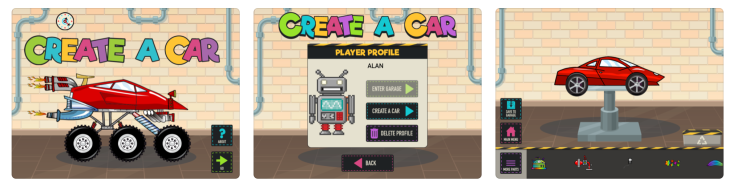
We use the Create-a-Car app in JK during their car unit to allow students to design, name, and test out their own automotive creations.

Screen Shot 2018-08-27 at 9.12.34 PM

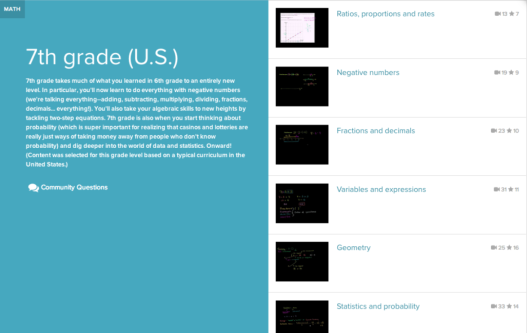
Khan Academy: Math

You are likely already plenty familiar with Khan Academy as it has already been used by our math department to provide additional tutorials for students. Along with other powerful tutorial sites, a link to this completely free resource can also be added to the sidebar of class Schoology pages or wherever math homework is assigned. While the lessons are not specifically Singapore aligned in their explanations, for our older students it allows for tutorials as an additional accompaniment to their learning.

***Side Idea*** Once students get some experience with evaluating what makes a successful video tutorial, there are a number of platforms featured on this site that we can use to curate and showcase our own student lessons.

khan


Screen Shot 2018-08-27 at 9.20.33 AM


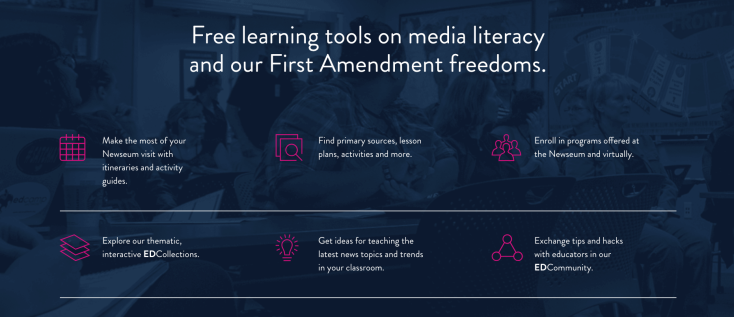
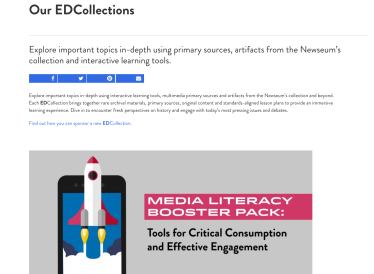
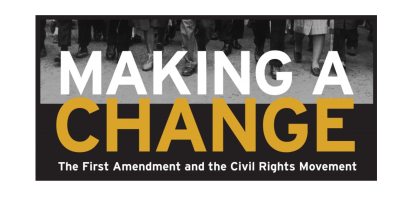
NewseumEDU

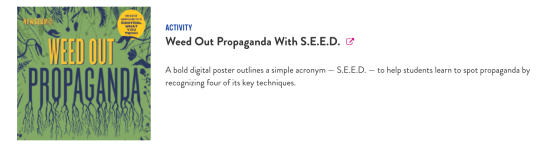
The Newseum’s online content is some of the best available when it comes to vetting of information, teaching students about research in the 21st century, and archival information about history’s most impactful events. Even the premium membership is free to students and teachers. It is a highly recommended resource for teachers and students to have bookmarked!

Screen Shot 2018-08-25 at 8.40.56 PM


Screen Shot 2018-08-25 at 8.42.28 PM


Screen Shot 2018-08-25 at 8.42.37 PM


Screen Shot 2018-08-25 at 8.42.45 PM


Screen Shot 2018-08-25 at 8.43.11 PM

Listenwise

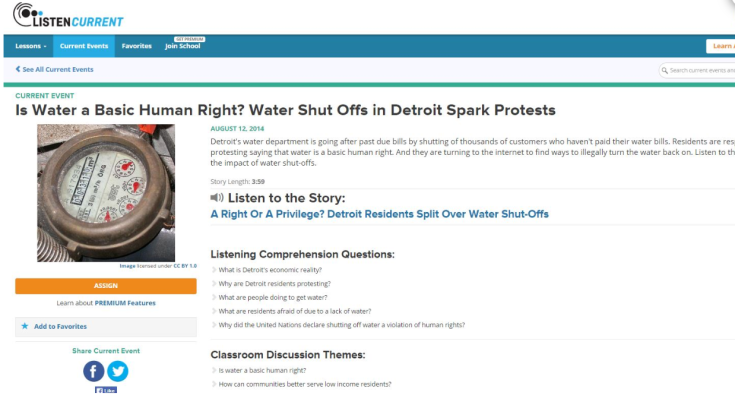
Listenwise is a site that contains resources for teachers to pair with recent topics covered on NPR programming. While it offers a school subscription, it also provides free resources that work on their own as a nice complement to SEL, current events, government, or civics curriculum.

Screen Shot 2018-08-25 at 8.28.48 PM

Civil War Today

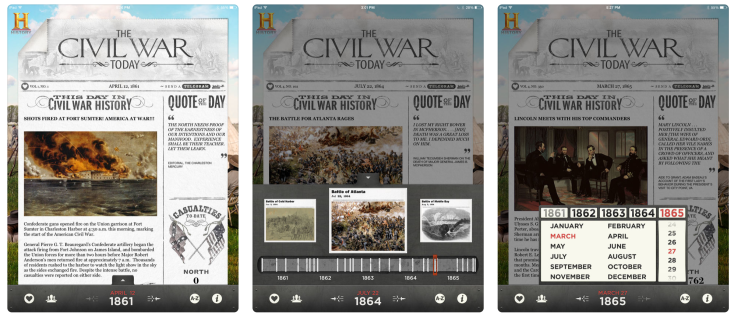
The Civil War Today app has been around for about 8 years now but it continues to improve with each new updated version it puts out. If there is interest, we can put it on all Library iPads depending on desired use. It basically provides a daily interactive front page newspaper of events occurring on that day during the Civil War. Used as either as a quick warm-up activity, or as the foundation of an entire unit or curriculum, Civil War Today remains a solid resource for our students.

Screen Shot 2018-08-25 at 8.15.06 PM

Osmo Words

Words is yet another learning tool that utilizes the Osmo devices. There are sets that can be checked out from the library (enough for a half group). They are a great way to Screen Shot 2018-08-23 at 6.22.19 PMreinforce spelling and phonetic patterns to help complement any existing word building program.

Osmo Tangram

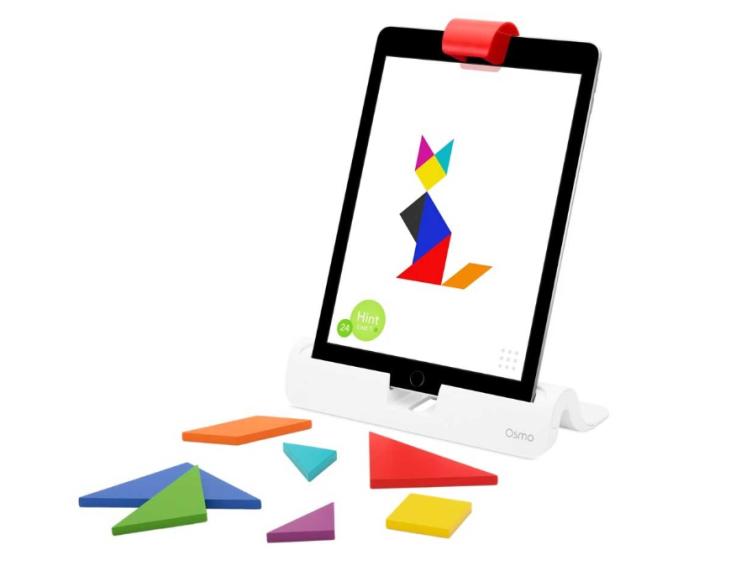
Tangram for Osmo is a great way for younger students to practice spatial awareness, symmetry, shapes, and design. We have multiple sets (enough for half groups) and can be checked out through the library.

Screen Shot 2018-08-23 at 6.03.47 PM

X-Code by Apple

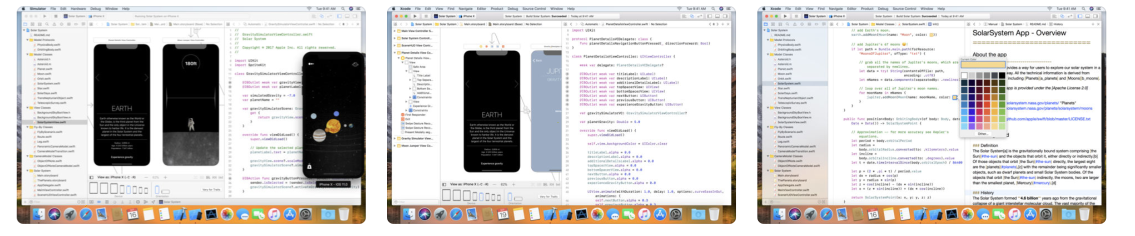
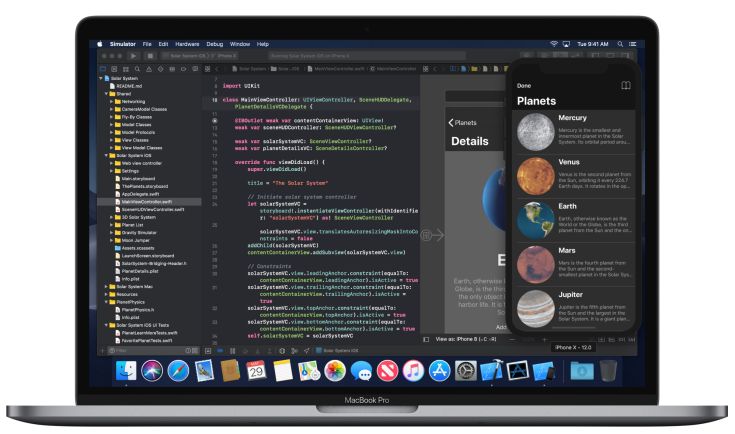
X-Code is known as an integrated development environment (IDE) for macOS. It can basically be viewed as blueprints for students to develop their own app, which can even be developed and potentially sold through the app store. There are tons of tutorials and help sites built in so even those students without advanced programming experience can gradually pick it up if they are motivated learners who like an independent track that they can follow at their own pace.

Screen Shot 2018-08-23 at 5.50.49 PM

Screen Shot 2018-08-23 at 5.39.28 PM

Swift Playgrounds

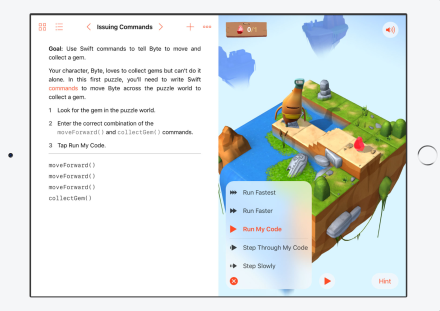
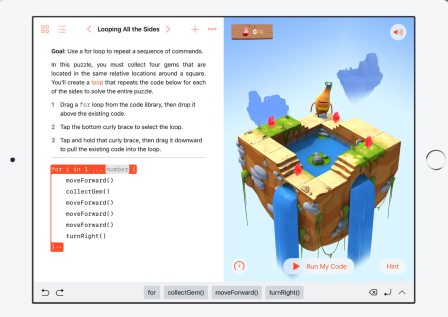
Swift is a programming language similar to java and is developed by Apple. Swift Playgrounds is a program that teachers intermediate level student programmers how to code. It takes students step by step and is a great alternative to “Hour of Code” lessons sponsored by Code.org and others.

Screen Shot 2018-08-23 at 5.43.58 PM

Screen Shot 2018-08-23 at 5.44.21 PM

Virtual Reality: Art

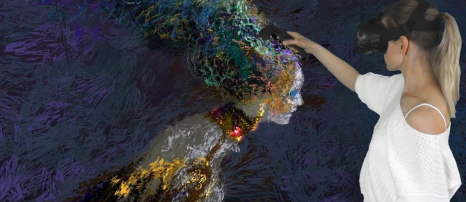
Along with other academic areas, virtual reality has also grown to support amazing art and creation. This past August, student interns who helped build the computer that drives our top VR equipment had fun “virtual tagging” walls with spray paint design. Just like traditional art, there are lots of mediums you can work with and many options for displaying your finished work so it can be appreciated beyond just the virtual world.

Screen Shot 2018-08-23 at 11.04.01 AM


Screen Shot 2018-08-23 at 11.05.16 AM

Augmented Reality

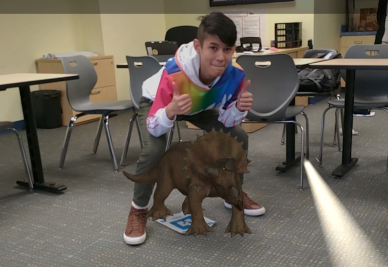
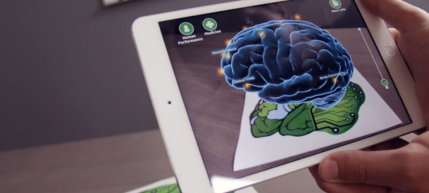
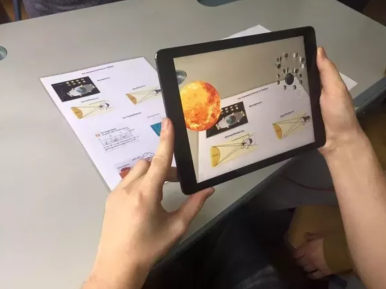
Augmented Reality is perhaps even more powerful than VR in an education setting because every student can have the same experience at the same time. It can easily be added into an existing lesson and be experienced concurrently with class lecture, group work, research, and more.

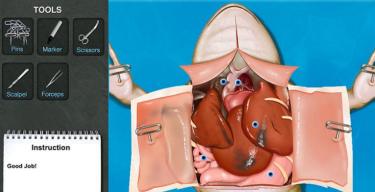
Imagine frog dissection without the smell! Students can look at the human body and dive into layers of a cell. If you have a topic you teach, there is an augmented reality visual experience you can draw on to reinforce learning. There are also numerous ways for students to take advantage of existing material, add to it, and incorporate it into their own project to showcase their learning.

Screen Shot 2018-08-23 at 10.58.45 AM

Screen Shot 2018-08-23 at 10.20.37 AM

Screen Shot 2018-08-23 at 10.19.24 AM

Screen Shot 2018-08-23 at 10.19.49 AM

Virtual Reality

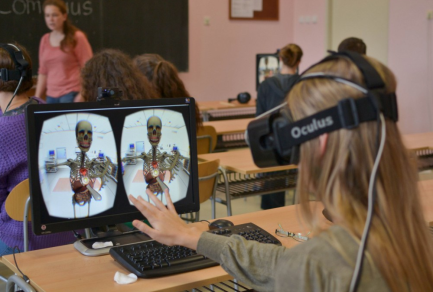
VR has long been considered an extension of the video game industry and the assumption is that it is purely entertainment (or worse, excess screentime strapped to your face). However, the educational ramifications of putting students into space, geographically anywhere on the planet including in the oceans, in the midst of a battle fought long ago etc… are pretty powerful. Even as a short intro to a larger lesson, VR is a fantastic way to engage students and give them a more visceral learning experience to complement other more traditional components of teaching a unit.

Schools that have headsets, and can take advantage of apps like Discovery VR and Google Expeditions to instantly take students anywhere. Screen Shot 2018-08-23 at 10.41.57 AMScreen Shot 2018-08-23 at 10.41.37 AM

Additionally, we have a top of the line virtual reality headset and equipment that lives in the tech training room. Although only one student at a time can actually navigate with the headset, classmates can watch on the big screen while they await their turn working on another “learning station”.

Screen Shot 2018-08-23 at 10.18.26 AM

Apple CLIPS

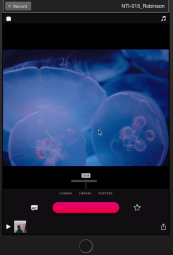
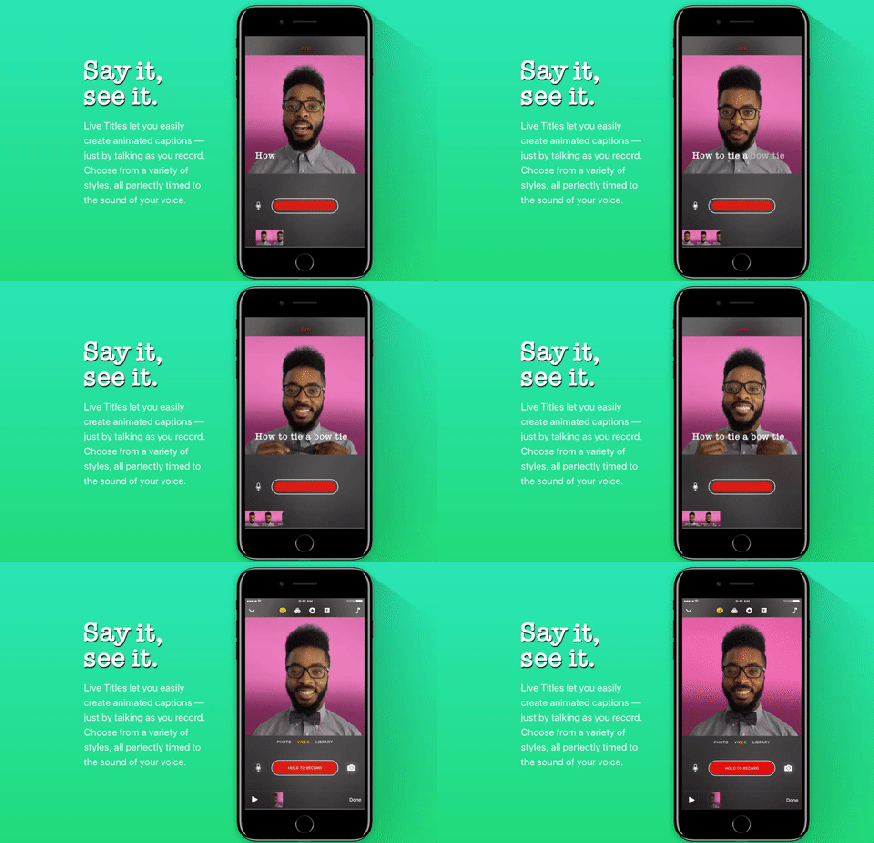
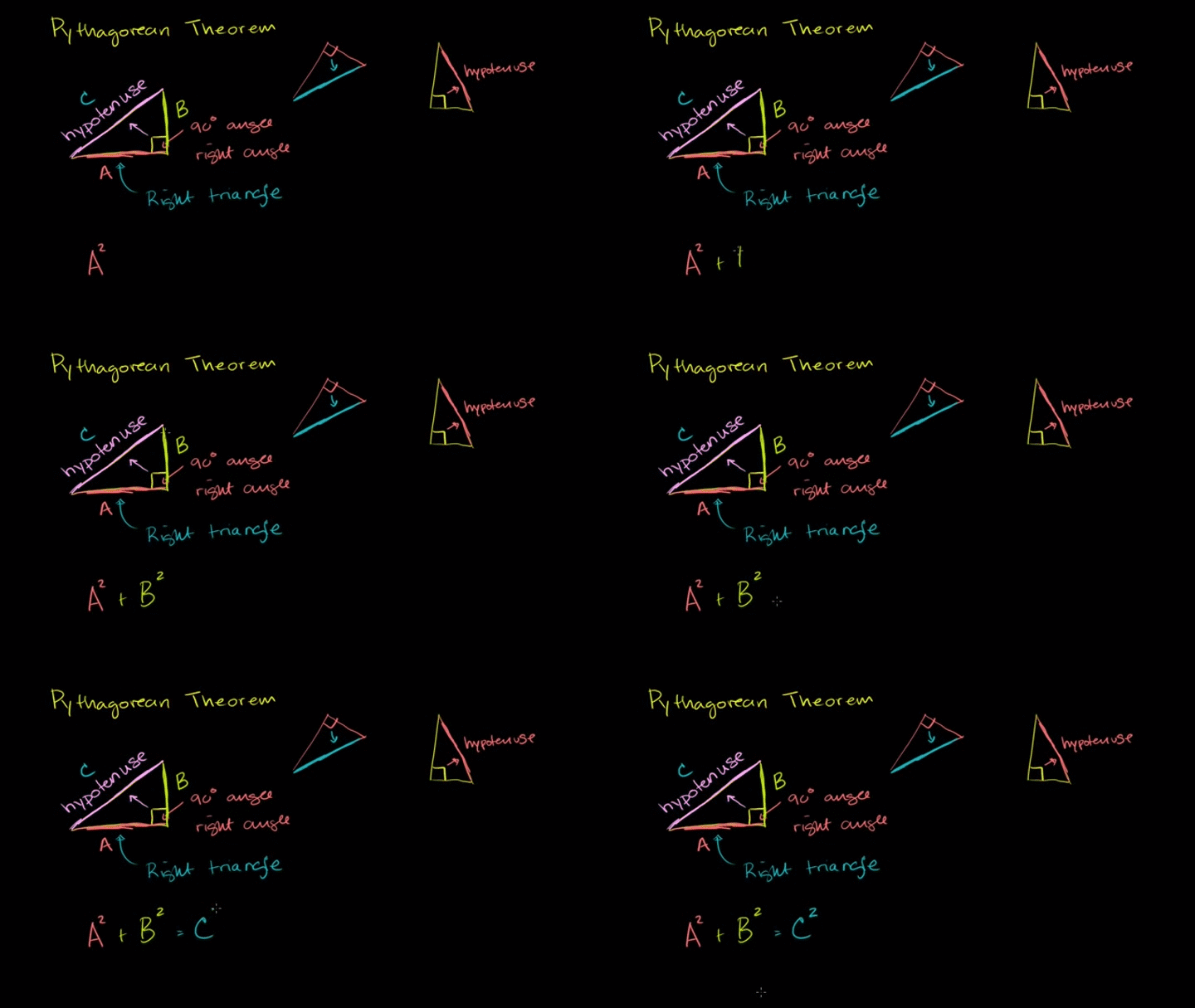
CLIPS is a relatively new app (also a site) that was released late last year. It is a FANTASTIC alternative to iMovie, especially for our lower school students as it allows for an engaging, visual project but can be condensed into a one-off lesson. It is simple in its layout and can be used in a variety of ways. From narrating and animating a story or poem, to labeling parts of the ecosystem, to breaking down the cause and effect of a moment in history, it is all very easy and engaging for our students. It can also be a powerful tool for our youngest learners because of its ability to show the words you speak in “real time”. The possibilities for students to be able to narrate and illustrate their own books with words that fly out on the screen in any style they choose is really exciting. Clips is available on all school iPads (including the Library if students would like to check one out for a project).
Screen Shot 2018-08-21 at 9.07.57 AM                                                                     Screen Shot 2018-08-21 at 9.22.10 AM58d14e322c00002100fef8ea

Check out a student-created example below!


Osmo Coding

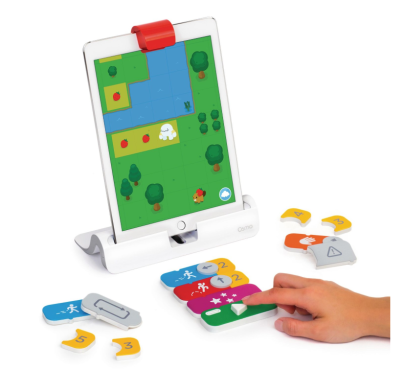
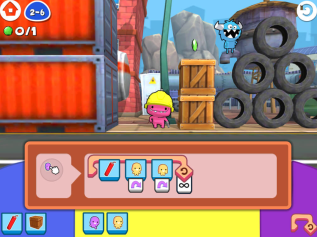
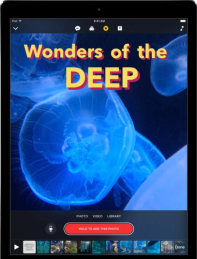
JK and SK students have access to Osmo devices and accessories in the classroom, where one of the strongest accompaniments is the Osmo Coding program. They provide a nice bridge between the tactile elements found in other early coding tools such as Bee-Bots, and transition to the screen based drag and drop style that they will be accessing more and more.
Screen Shot 2018-08-20 at 9.06.27 PM

Bee-Bot

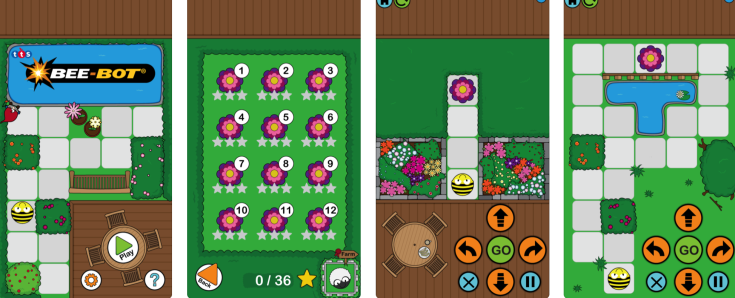
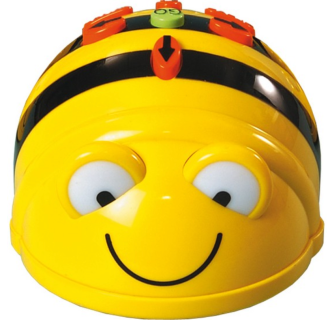
Bee-Bot is a great app suited for JK and SK students who are just getting started with building a “coding mind”. It would be the best route for laying the foundation for planning out a path using simple commands, as well as block-based. We use the physical Bee-Bots with mats in the classroom beginning in JK and continuing with SK.

Screen Shot 2018-08-20 at 8.51.29 PM


Screen Shot 2018-08-20 at 8.52.02 PM

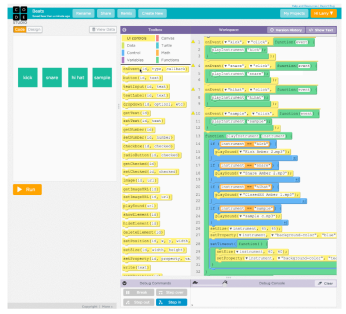
Code.org

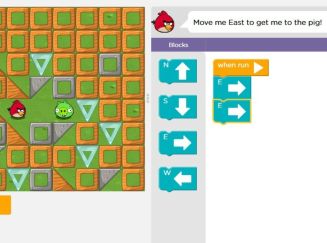
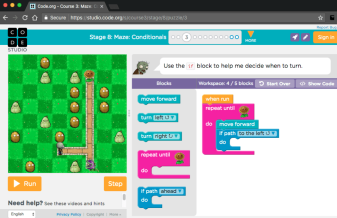
Code.org is a free online platform that teaches students of all ages how to code at their own comfort level.  Younger students can progress through different challenges using block-based coding, similar to what they will use when working with Scratch Jr.  The early lessons also let them click on the speaker icon to hear directions rather than rely on being able to read them, should they still be an emergent reader. Our oldest students will also be plenty challenged as they are given personalized lessons that suit their level of programming experience.

Screen Shot 2018-08-20 at 8.45.16 PM
Intro levels
Screen Shot 2018-08-20 at 8.40.09 PM
Beginner levels


Screen Shot 2018-08-20 at 8.40.37 PM
Intermediate levels
Screen Shot 2018-08-20 at 8.41.29 PM
Java instruction

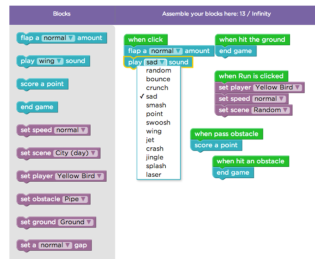
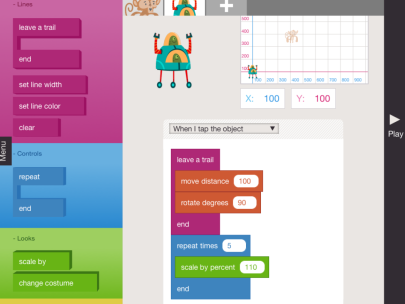
Hopscotch

Hopscotch is a great early programming tool for students ready to transition from lesson by lesson tutorials, or who have progressed beyond Scratch Jr., and are ready to design their own games. Hopscotch also is unique in its approach to coding through art design as well.

Screen Shot 2018-08-20 at 8.22.22 PM


Screen Shot 2018-08-20 at 8.22.45 PM

Check out the video below to see how one of our 2nd graders created a game using Hopscotch, with a step by step tutorial given by the 2nd-grade coder themselves!

Scratch Jr.

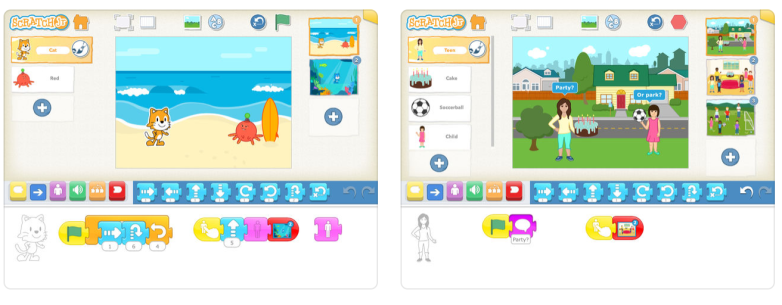
Scratch JR. continues to be one of the leading platforms for teaching young students how to code. Because it lays the groundwork for success when students are ready to make the transition to Scratch (the more robust platform for older students), it becomes a natural transition when they are ready to layer in more advanced commands.

Screen Shot 2018-08-20 at 8.17.54 PM

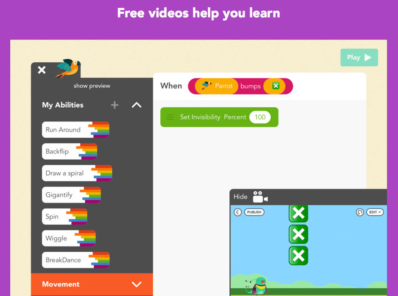
Tynker

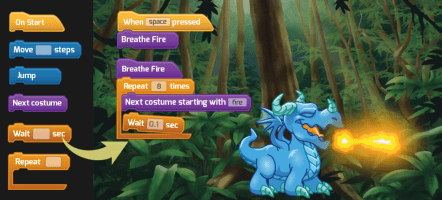
Tynker is both an app and an online platform that teaches early coding. Even the free offerings provide a large volume of coding lessons. For younger students, the “drag and drop” block-based coding is presented in a way that they can learn the basic elements of coding. There are a number of game-based tutorials that keep young learners engaged, and lay the groundwork for java and python languages down the road.

Screen Shot 2018-08-20 at 2.45.19 PM

Screen Shot 2018-08-20 at 2.44.54 PM
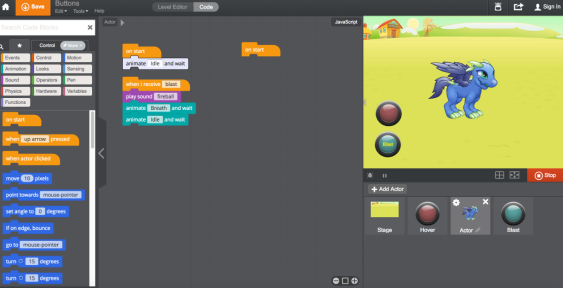
More advanced coding options for older students

PicsArt

PicsArt is a more advanced photo editor than pic collage, but simple enough for a first grader to begin to explore simple editing tools as they develop their interest in photography. It is both an app available on school iPads, as well as a site. Older students can take advantage of this photo editing tool for “app-smashing” and incorporating into broader projects.

Screen Shot 2018-08-20 at 2.36.28 PM

Screen Shot 2018-08-20 at 2.35.59 PM

Scrap Coloring

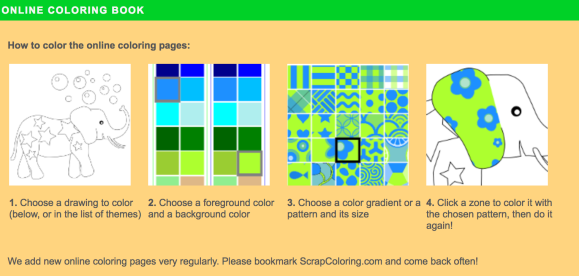
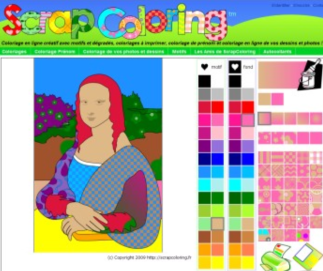
ScrapColoring is a website, not an app. It is one additional option for younger students to explore different mediums, patterns, and digital art tools but is simple to use. It has additional links to origami tutorials and more.

Screen Shot 2018-08-20 at 2.29.22 PM


Screen Shot 2018-08-20 at 2.28.37 PM

Bomomo

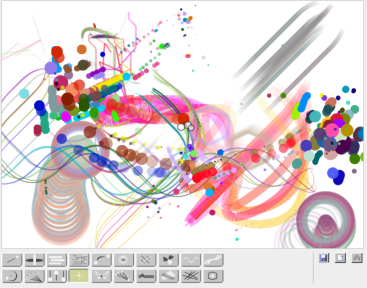
Bomomo is very simplistic in appearance and ease of use. It uses elements of symmetry and shapes to allow students to create somewhat of a kaleidoscope effect of an image. While it is somewhat limited in the style of art students can create, it is easy for even the youngest students to navigate as they learn texture.

Screen Shot 2018-08-20 at 2.22.59 PM


Screen Shot 2018-08-20 at 2.22.35 PM

MoMA Art Lab

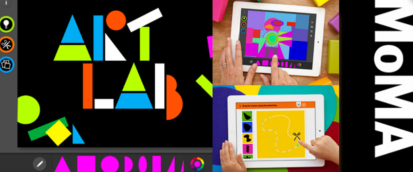
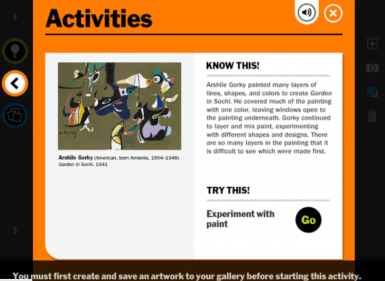
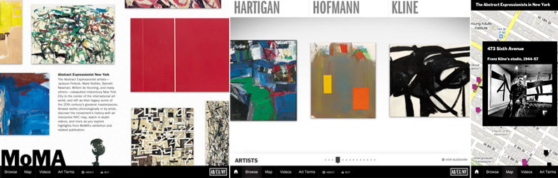
MoMA Art Lab is a great app for JK through 5th-grade students to experiment with design. For older students, there are activities that reinforce various styles throughout art history. It is free and child-friendly. One great feature it possesses is the bank of activities that can help guide and teach students while they create.

Screen Shot 2018-08-20 at 2.14.21 PM


Screen Shot 2018-08-20 at 2.14.53 PM


Screen Shot 2018-08-20 at 2.15.24 PM

Pic Collage

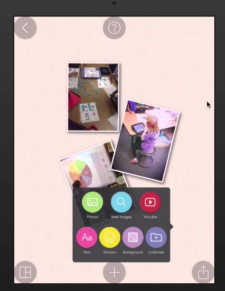
Pic Collage is an easy way for our younger students to make digital cards, collages, etc…  It is a free app that provides plenty of content on its own, though be aware that the in-app purchases are present and kids can want to add stickers that are not free.

Screen Shot 2018-08-20 at 2.12.30 PM

Make-10

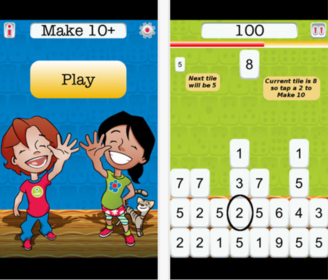
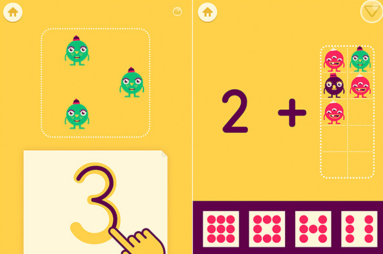
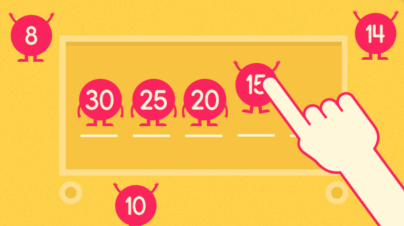
MAKE-10 is an app that also promotes early number sense. Because JK and SK students can begin practicing concepts of number bonding first using dots, then digits, it helps reinforce number sense rather than simple rote memorization.

  • Advantages 

levels can be adjusted to begin with “make 5” and then can increase in increments

  • Drawback

    the “Tetris” style game movement can at first overwhelm JK students who are just beginning with number recognition

Screen Shot 2018-08-20 at 2.04.14 PM


Screen Shot 2018-08-20 at 2.04.27 PM

Wet Dry Try

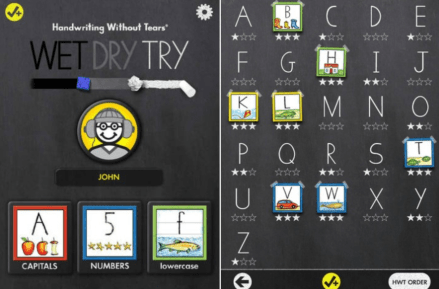
Wet-Dry-Try is the app that specifically goes with “Handwriting Without Tears”, the program used to review proper letter formation in JK-2nd). It is pretty straightforward so although it is not as visually engaging as Letter School, its simplicity makes it advantageous for students who benefit from less distraction.

Screen Shot 2018-08-20 at 1.53.24 PM

Screen Shot 2018-08-20 at 1.53.08 PM

Google Sites: 5th Grade

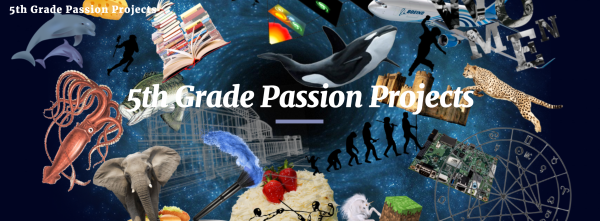
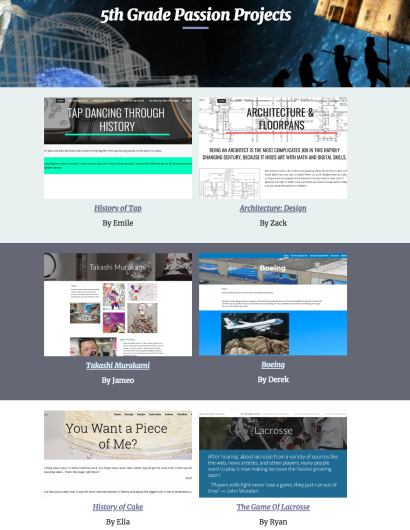
For 5th Graders, Google Sites has proven to be a great way to house their final “Passion Projects”, as well as being a helpful way for students to stay organized as they collect resources and check off project rubrics throughout the year. The opportunity to share their final work with extended family and those field experts who helped in their research makes it a great platform. Rising middle schoolers are able to approach the next phase of the school with expertise in using this tool when the time comes to showcase their learning within project-based models.
CHECK OUT LAST YEARS STUDENT PROJECTS HERE!

Screen Shot 2018-08-20 at 1.23.57 PM

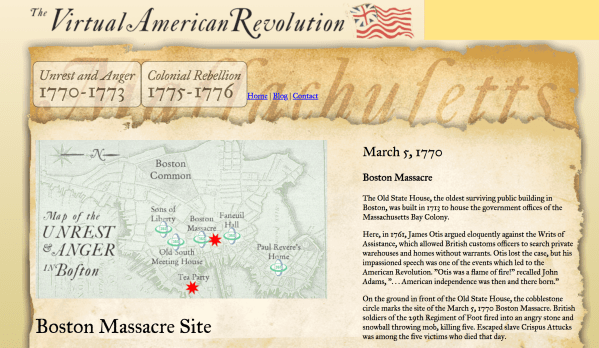
Here is another example of “sites” in action with a 5th-grade reading group project that incorporated interactive maps using Google Sites.

Google Sites: Middle School

Google Sites is one of many options for easy, template-based website creation. Various grade levels and subject areas have used it in a variety of ways. It embeds content directly from student Google Drives with ease, though is also designed to add content from anywhere in seconds. It is a great option for sharing student work with extended families who live across the world.

CLICK HERE to check out how Middle Schoolers have used it to house their projects.

Blog at WordPress.com.

Up ↑